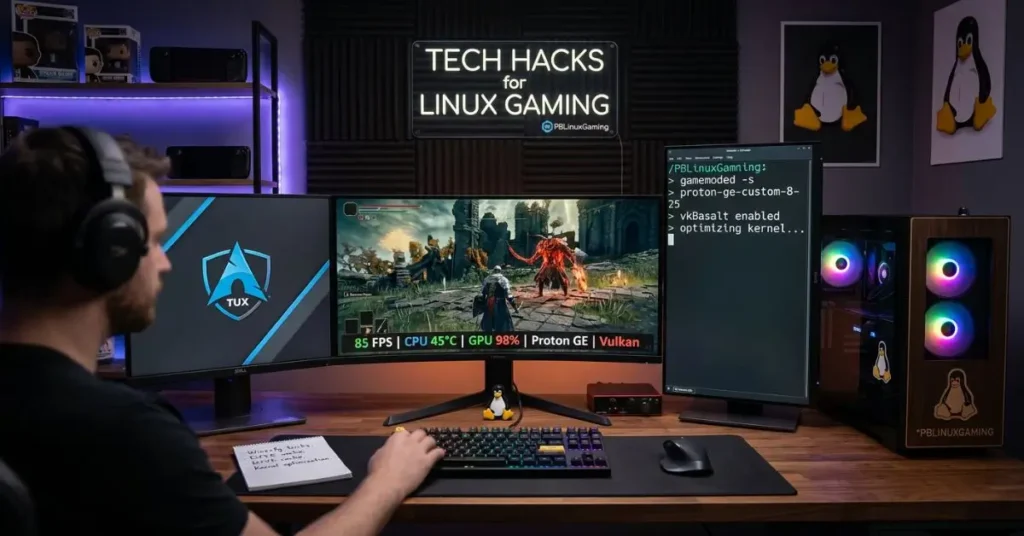

Tech Hacks PBLinuxGaming
Linux gaming has come a long way. What used to require significant technical expertise and constant troubleshooting just to get games running is now accessible to a much broader range of users. Steam’s Proton compatibility layer, improved driver support, and a growing community of Linux gaming enthusiasts have made the platform genuinely viable for serious gaming.
But viable is not the same as optimized. Out of the box, most Linux installations are not configured for gaming performance. The default settings prioritize stability, power efficiency, and general use rather than the low-latency, high-frame-rate performance that gaming demands.
That is where the tech hacks pblinuxgaming covers come in. PBLinuxGaming has built a reputation for sharing practical, tested optimizations that help Linux gamers get significantly better performance from their existing hardware. This guide covers the most valuable of those hacks, explains why each one works, and tells you exactly how to apply them.
Tech hacks pblinuxgaming refers to the practical technology optimizations, configuration tips, and performance improvements shared through the PBLinuxGaming platform for Linux-based gaming setups. These hacks cover areas including kernel optimization, GPU driver configuration, game compatibility tools, system performance tuning, and software settings that collectively improve the gaming experience on Linux without requiring hardware upgrades.
Quick Summary
Linux gaming performance improves dramatically with the right configuration. The most impactful tech hacks from PBLinuxGaming include switching to a gaming-optimized kernel, enabling Proton for Windows game compatibility, configuring GPU drivers correctly, setting CPU performance mode, and using MangoHud for real-time performance monitoring. This guide covers each one with practical steps.
Why Linux Gaming Needs Optimization
Linux is built for many things. Gaming at peak performance is not one of its default configurations. Understanding why helps you appreciate why these optimizations matter.
The default Linux kernel is a general-purpose kernel designed to handle everything from server workloads to desktop productivity. It makes scheduling decisions that prioritize fairness across processes rather than the low-latency, prioritized performance that games need. A game competing for CPU time with background system processes through a general scheduler will not perform as consistently as one running through a gaming-optimized configuration.
GPU driver behavior, power management settings, and memory management policies all have similar gaps between default settings and optimal gaming settings. None of these are bugs. They are design decisions appropriate for general computing that simply do not suit gaming.
The tech hacks from PBLinuxGaming systematically address these gaps without requiring users to rebuild their entire system or become kernel developers.
Key Tech Hacks From PBLinuxGaming
Switch to a Gaming-Optimized Kernel
The standard Linux kernel is solid but not optimized for gaming. Switching to a kernel built specifically for low-latency performance makes a measurable difference in how consistently games run.
The Liquorix kernel and the Xanmod kernel are two widely recommended options in the Linux gaming community. Both apply patches that reduce scheduling latency, improve responsiveness during high-load scenarios, and handle gaming workloads more efficiently than the vanilla kernel.
To install Liquorix on Ubuntu or Debian-based systems, add the Liquorix repository and install through your package manager. Xanmod offers similar installation through its own repository. After installation, reboot and select the new kernel from your bootloader.
The improvement is most noticeable in games with variable frame rates or during intensive scenes where the standard kernel struggles to maintain consistency.
Enable and Configure Proton for Windows Games
Proton is Valve’s compatibility layer that allows Windows games to run on Linux through Steam. Without Proton, the Linux-native game library is significantly smaller than what most gamers expect. With Proton, the vast majority of the Steam catalog becomes accessible.
Enabling Proton in Steam is straightforward. Go to Steam Settings, select Steam Play, and enable Steam Play for all titles. You can also select which version of Proton to use, which matters because different versions have different compatibility profiles for different games.
ProtonDB at protondb.com is the community database where users report compatibility and performance for specific games. Before launching a Windows game through Proton, checking ProtonDB tells you which Proton version works best and whether any specific launch options improve performance for that title.
Install and Configure the Correct GPU Drivers
Using the wrong GPU driver or an outdated version is one of the most common performance limiters for Linux gamers. The driver situation differs between AMD and NVIDIA hardware.
For AMD GPUs, the open-source AMDGPU driver included in most modern Linux distributions is well-maintained and performs excellently for gaming. The key is ensuring your kernel and Mesa versions are current, as Mesa updates frequently bring significant gaming performance improvements.
For NVIDIA GPUs, the proprietary NVIDIA driver consistently outperforms the open-source Nouveau driver for gaming. Installing the latest stable proprietary NVIDIA driver from the official NVIDIA repository or through your distribution’s driver manager is essential for competitive gaming performance.
After installing drivers, verify the correct GPU is being used for gaming by checking with the glxinfo command or through MangoHud, which displays the active GPU during gameplay.
Set CPU Governor to Performance Mode
Linux power management adjusts CPU clock speeds dynamically to save energy. This is great for battery life and electricity costs but creates latency spikes during gaming when the CPU takes time to ramp up to full speed in response to sudden load increases.
Setting the CPU governor to performance mode keeps clock speeds at maximum during your gaming session, eliminating those ramp-up delays.
On most distributions, you can set the governor using the cpupower command. Run cpupower frequency-set -g performance in your terminal with sudo privileges. This applies until the next reboot. For a permanent change, configure it through your system’s startup scripts or use a tool like auto-cpufreq configured for performance during gaming.
The improvement is most noticeable in games with fast action that creates sudden CPU load spikes, which are exactly the moments where input lag is most damaging.
Use MangoHud for Real-Time Performance Monitoring
You cannot optimize what you cannot measure. MangoHud is a Vulkan and OpenGL overlay that displays real-time performance metrics including frame rate, frame time, GPU usage, CPU usage, VRAM usage, and temperatures during gameplay.
Installing MangoHud on most distributions is straightforward through your package manager. Once installed, launch games with the MANGOHUD=1 prefix to enable the overlay, or configure it to launch automatically with specific games through Steam launch options.
The value is not just seeing your frame rate. Frame time is the metric that reveals inconsistencies invisible to average FPS numbers. A game averaging 60 FPS with frame times varying between 8 and 30 milliseconds feels significantly worse than one with consistent 16-millisecond frame times. MangoHud shows you both, giving you the data to identify what is actually causing the performance issues you feel.
Configure Gamemode
Feral Interactive’s Gamemode is a tool that automatically applies a series of optimizations when a game is launched, including setting the CPU governor to performance mode, adjusting process priority, and disabling certain background services that compete with game performance.
Install Gamemode through your package manager and add gamemoderun to your Steam launch options for each game. It activates automatically when the game starts and reverts changes when the game closes, giving you gaming-optimized settings only when you actually need them.
This is one of the most set-and-forget hacks available because it requires configuration once and then works automatically for every game you add it to.
Optimize Swap and Memory Management
Linux’s default memory management settings can cause stuttering in games that use large amounts of RAM, particularly when the system starts using swap space. Adjusting the swappiness value reduces how aggressively the system moves memory to swap, keeping more game data in faster RAM.
The default swappiness value is 60. For gaming, reducing this to 10 keeps more data in RAM and reduces swap-related stuttering. Set this temporarily with sudo sysctl vm.swappiness=10 or make it permanent by adding vm.swappiness=10 to your /etc/sysctl.conf file.
For systems with sufficient RAM, 8GB or more, this change consistently reduces the micro-stutters that many Linux gamers experience during intensive gameplay moments.
Comparing Key Linux Gaming Optimizations
| Optimization | Difficulty | Impact | Reversible |
|---|---|---|---|
| Gaming kernel (Liquorix/Xanmod) | Medium | High | Yes |
| Proton configuration | Low | High | Yes |
| GPU driver update | Low to Medium | High | Yes |
| CPU governor to performance | Low | Medium to High | Yes |
| MangoHud installation | Low | Monitoring only | Yes |
| Gamemode | Low | Medium | Yes |
| Swappiness adjustment | Low | Medium | Yes |
All of these optimizations are reversible. None require permanent system changes that cannot be undone. Starting with the lower-difficulty, high-impact options and working toward the more involved ones is a sensible approach.
Additional PBLinuxGaming Tips Worth Knowing
Use DXVK for DirectX to Vulkan Translation
Many Windows games use DirectX, which does not exist natively on Linux. DXVK translates DirectX 9, 10, and 11 calls to Vulkan, which Linux handles natively. Proton includes DXVK automatically, but for games run outside of Steam, ensuring DXVK is active can significantly improve performance and compatibility.
Enable Hardware-Accelerated Video Decoding
Games with frequent video cutscenes or streaming features benefit from hardware-accelerated video decoding. On AMD systems, enabling VAAPI and ensuring it is used by media and game processes reduces CPU load during video-heavy moments. On NVIDIA systems, NVDEC provides the same function.
Check and Update Mesa Regularly
Mesa is the open-source graphics library that underpins AMD and Intel GPU performance on Linux. Newer Mesa versions frequently include gaming-specific optimizations and bug fixes. Using a repository that provides more current Mesa versions than your distribution’s default, such as the oibaf PPA on Ubuntu, keeps you current with improvements that official packages lag behind.
Use a Gaming-Focused Distribution
For users willing to make a larger change, distributions built specifically for gaming like Bazzite or Nobara Linux include many of these optimizations pre-configured. Nobara in particular ships with gaming-focused patches and configuration that would take hours to replicate manually on a standard distribution.
Conclusion
The tech hacks covered by PBLinuxGaming represent years of community testing and practical optimization that genuinely improve Linux gaming performance. None of them require advanced technical expertise once you understand what each one does and why it helps.
Start with the highest-impact, lowest-difficulty changes. Enable Proton, install the correct GPU drivers, set up Gamemode, and install MangoHud to measure your baseline performance. Those four steps alone will noticeably improve most Linux gaming setups before you touch anything more involved.
If this guide helped you, explore our related articles on how to set up Steam on Linux for the first time and the best Linux distributions for gaming in 2026. Both give you the next layer of practical detail for building a Linux gaming setup that performs as well as your hardware allows.
Frequently Asked Questions
What are tech hacks pblinuxgaming and why do they matter?
They are practical Linux gaming optimizations shared by PBLinuxGaming that improve performance, reduce latency, and make games run smoother by adjusting settings beyond default configurations.
Does switching to a gaming kernel help?
Yes. Gaming kernels like Liquorix and Xanmod reduce latency and improve frame consistency, especially in fast-paced games where smooth performance matters most.
Is Linux gaming as good as Windows?
For many titles, yes. Proton allows most Steam games to run well on Linux. Some anti-cheat games remain incompatible, but overall performance is often comparable.
How do I choose the right Proton version?
Use ProtonDB to see which version works best for your game and check community-recommended launch options.
Can these optimizations cause instability?
Most tweaks are safe and reversible. Kernel changes carry the most risk, so keep your default kernel available as a backup.